
Cursor IDE vs Agents Window: When to Use Each
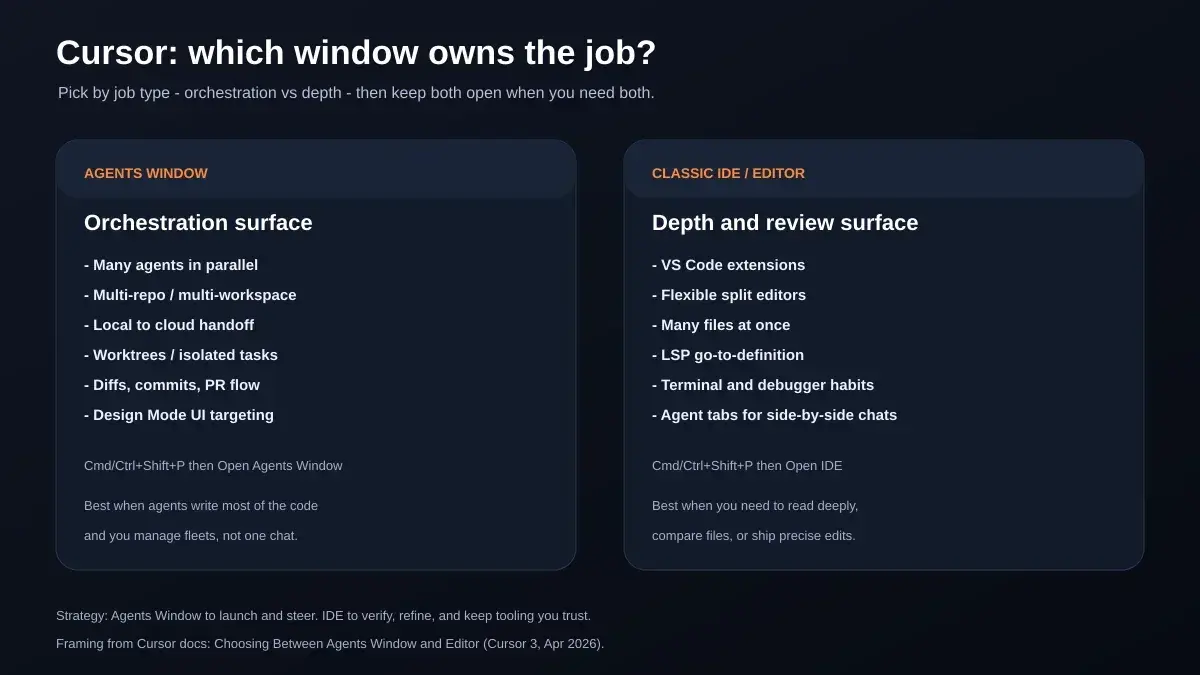
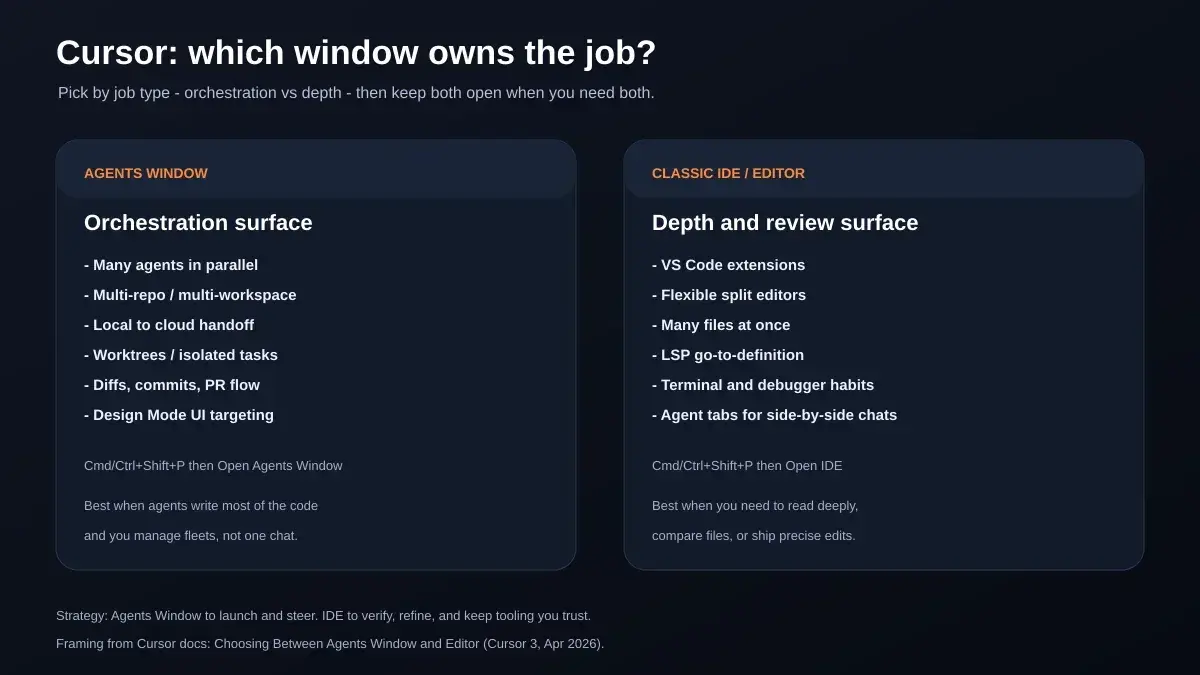 Cursor's own docs frame the split clearly: Agents Window for managing many agents; classic editor when you need VS Code extensions and dense file views.
If you already understand Cursor IDE vs Agents Window, but still catch yourself flipping between them every few minutes, you are not failing the product. You are missing a job assignment.
Cursor 3 did not replace the familiar VS Code-style editor with a single new UI. It added a second, agent-first workspace and told you—explicitly—that both will keep getting better. The Agents Window documentation says you can switch back anytime or keep both open. That is the feature. Thrashing happens when you treat the two windows as competing “homes” instead of two tools with different ownership.
This guide is the strategy layer on top of vocabulary. For rules, skills, Plan Mode, and cloud agents as concepts, start with AiPress's Cursor agents, rules, and skills explainer. For how Cursor sits in a broader SEO/content stack, see the best AI agents for SEO content creation guide. Here we answer one question: which window should own which minute of your day?
Why two windows feel confusing even when you understand both
Most people learn Cursor in this order:
- Classic editor with Tab, Cmd/Ctrl+K, and a side-pane agent (Cmd/Ctrl+I)
- Stronger agent loops that edit many files
- Suddenly, Cursor 3 and a full Agents Window that feels like a different app
The confusion is not “what is an agent?” It is where the agent lives, and whether the old side pane still counts.
Cursor's Cursor 3 announcement is blunt about the motivation: engineers were micromanaging individual agents across terminals, chats, and tools. The new interface pulls you up a level—fleets, handoffs, multi-repo—while still letting you dig into files when you want. The 3.0 changelog adds Design Mode inside the Agents Window and Agent Tabs inside the editor. So both surfaces still have agent UX. The difference is center of gravity.
Forum confirmation matters here because UI anxiety is real. Cursor staff have said the Agents Window is a separate window by design, not a panel you dock back into the IDE. Dual windows are intentional: orchestration on one side, classic VS Code flow on the other. If chat history looks empty in one surface, a window reload is often the first fix—live sync between windows is not perfect yet. Treat that as product reality, not a sign you “broke” your layout.
Pro tip: Stop asking “which UI is the real Cursor?” Ask “am I managing agents or reading code?” That single question cuts most thrashing.
What the Agents Window is (and what only it can do)
Per Cursor's docs, the Agents Window is the agent-first interface: a unified workspace to build with agents across repos and environments—local, cloud, remote SSH, and more. It is meant to combine parallel agents with enough development control that you are not trapped in a toy chat.
 Official Agents Window docs: open from the command palette, switch back to the IDE, or run both at once.
Features Cursor lists as Agents Window strengths
From the Agents Window docs, these stand out as reasons to live there:
| Capability | Why it changes your day |
|---|---|
| Multi-workspace | One place for agents across projects instead of one-repo tunnel vision |
| Parallel agents (incl. cloud) | Sidebar visibility for local + cloud work kicked off from desktop, web, mobile, Slack, GitHub, Linear |
| Local ↔ cloud handoff | Pull a cloud session down to iterate fast; push local work up so it keeps running while you leave |
| Worktrees | Isolated Git checkouts so parallel tasks do not stomp each other |
| Diffs → commit → PR | Review and ship without bouncing to a separate Git ritual as often |
Cloud subagents (/in-cloud, /babysit) | Long-running work on its own VM/branch while you keep moving |
| Design Mode | Annotate browser UI so the agent targets the exact element you mean |
The Cursor 3 blog also emphasizes that cloud agents can produce demos and screenshots for verification—the same idea you get at cursor.com/agents, now closer to the desktop loop.
How to open it
From the editor command palette:
- Mac:
Cmd+Shift+P→ Open Agents Window - Windows / Linux:
Ctrl+Shift+P→ Open Agents Window
Exact palette wording can drift slightly by build (Agents Window, Open Agents Window, Switch to Agents Window). Trust the command list in your installed Cursor.
You can still search files without abandoning the Agents Window: Cmd/Ctrl+P for files, Cmd/Ctrl+Shift+F for content search. That matters for strategy—you do not need to flee to the IDE for every single file peek.
What the classic IDE / Editor Window is still best for
Cursor did not orphan the editor. The docs' choosing section is explicit: the editor is for the classic IDE with VS Code extensions and flexible screen splitting so you can see many files at once. The Cursor 3 post also says they will keep investing in the IDE until codebases are closer to self-driving.
 Cursor 3 positions the new interface as agent-centered while keeping an escape hatch to the familiar IDE.
Use the classic IDE when the job is depth:
- You need extension-powered tooling (lint, language packs, specialized previews)
- You are comparing three files and a terminal output at once
- You want go-to-definition / LSP muscle memory
- You are doing precise, small edits where human judgment beats another agent turn
- You want Agent Tabs side-by-side or in a grid without leaving the editor layout you already trust
The in-editor Agent still exists as a first-class assistant—Cursor's Agent overview describes the side-pane worker that runs tools, edits files, and uses checkpoints. So “IDE mode” is not “no AI.” It is AI inside a denser engineering cockpit.
Also note a changelog detail that affects mental models: cloud agents were removed from the Editor surface in 3.0. If you are hunting for cloud fleet controls, the Agents Window is the intended home—not a buried editor menu.
A practical strategy: orchestration vs depth
Here is the rule that ends most thrashing:
Agents Window owns orchestration. IDE owns depth and final judgment.
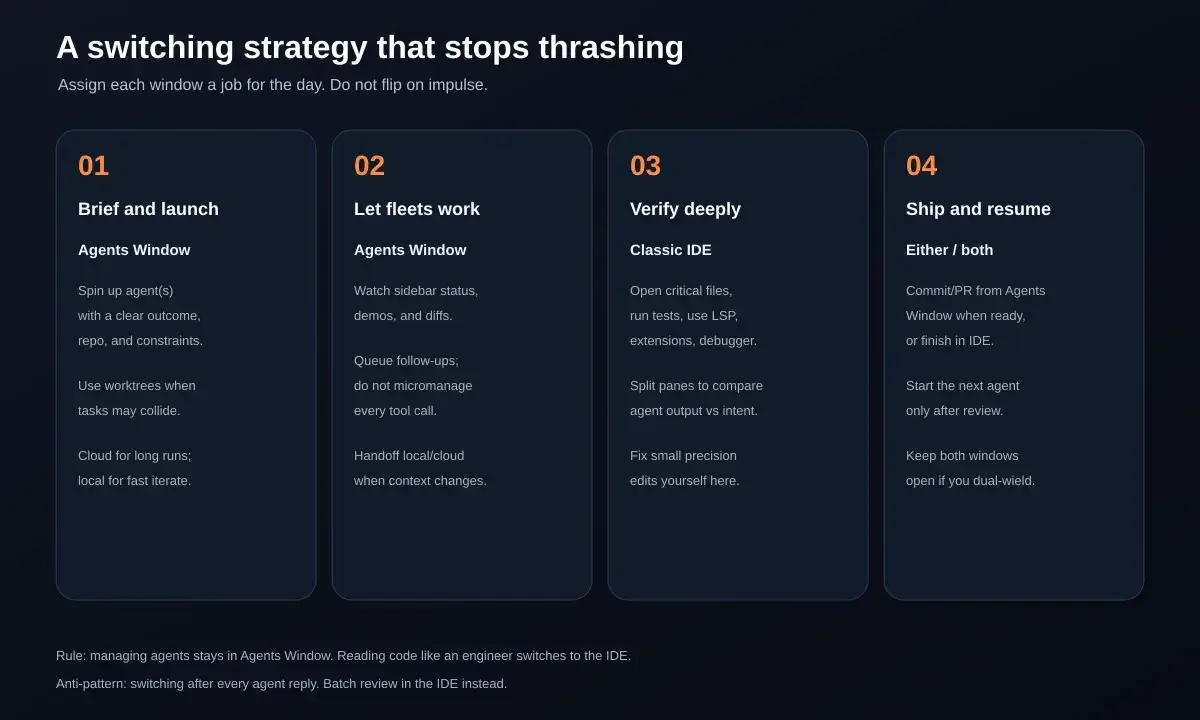 Batch agent work, then batch review. Switching after every reply is the thrash pattern.
Decision table you can actually use
| Situation | Prefer | Why |
|---|---|---|
| Kick off 2+ agents / worktrees / best-of-n style runs | Agents Window | Parallelism and isolation are first-class there |
| Long task that should keep going while you close the laptop | Agents Window (cloud handoff) | Local sessions die with your machine; cloud does not |
| Multi-repo or “all my projects in one sidebar” | Agents Window | Multi-workspace is an Agents Window feature |
| Reviewing a big agent diff before merge | Agents Window first, IDE if messy | Diffs/PR flow lives there; IDE if you need heavy file context |
| Debugging a subtle bug with extensions + debugger | IDE | Depth tools and splits |
| Editing copy/CSS with three panes open | IDE | Dense reading |
| Annotating a UI bug in a browser preview | Agents Window + Design Mode | Built for pointing at elements |
| Tiny one-file fix | Either (often IDE agent) | Do not open a fleet UI for a thumbtack |
Anti-patterns
- Ping-pong after every agent message. Stay in Agents Window until there is a reviewable chunk, then switch.
- Using Agents Window as a prettier chat while ignoring parallel/worktree features. If you only ever run one local chat, the classic IDE may feel calmer—and that is fine.
- Trying to dock the Agents Window back into the editor. It is a separate window on purpose.
- Launching a second agent in the same dirty worktree when isolation matters. Prefer worktrees /
/worktreepatterns from the 3.0 changelog.
Modes inside the strategy
You still choose agent behavior separately from window:
- Plan Mode (clarify → plan → build) when the change spans architecture or migrations
- Normal agent loop for bounded implementation
- Cloud handoff when wall-clock continuity matters
Those modes travel with the agent. The window decides how many of them you can see and steer at once.
How to switch (and when to keep both open)
Command palette muscle memory
| Goal | Command palette action |
|---|---|
| Enter agent-first UI | Open Agents Window |
| Return to classic editor | Open IDE (docs wording; some builds say Open Editor Window) |
| Keep both | Open the second window without closing the first |
Cursor's docs and forum guidance agree: simultaneous windows are supported. A strong dual-monitor setup is: Agents Window on the vertical screen (fleet + diffs), IDE on the main screen (files + terminal). On a laptop, prefer time-boxed phases over constant Alt-Tab.
When both should stay open
Keep both open when:
- An agent is running a long cloud job and you still need to edit locally
- You are verifying screenshots/demos from a cloud agent while reading source
- Design Mode feedback loops need browser targeting and file inspection
Close or ignore the second window when:
- You are deep-debugging and the fleet UI is noise
- You are purely launching overnight cloud work and walking away
Version note
Agents Window shipped generally available with Cursor 3 on April 2, 2026. Enterprise teams had a short admin-controlled rollout window after launch; after that, access is default. If a teammate cannot see the commands, they may be on a pre-3 build or an org still gating access—upgrade and check team settings before rewriting your workflow docs.
A day-in-the-life workflow for content and SEO ops teams
AiPress teams use Cursor for more than greenfield apps: content bundles, site profiles, publish scripts, QA captures. The same orchestration-vs-depth rule applies.
Morning — Agents Window
- Open the Agents Window and start the day's agents with crisp outcomes (“draft brief + facts for slug X”, “fix INP regression on page Y”).
- Use project rules and skills so each agent inherits the same voice and folder conventions (see the Cursor wiring guide linked above).
- If two articles or two sites might collide, use worktrees so Git stays honest.
Midday — stay put while fleets work
- Queue follow-ups instead of interrupting every tool call.
- Handoff to cloud when you need continuity through meetings.
- Skim demos/screenshots cloud agents produce before you dive into files.
Afternoon — IDE for judgment
- Open the classic IDE on the critical files:
article.md-class drafts, templates, schemas, performance traces. - Run tests, linters, Lighthouse, or Playwright yourself when the claim needs human eyes.
- Make precision edits. Teach the next agent turn only after you know what “done” looks like—same spirit as the AI content agent training checklist.
Close — ship, then re-enter Agents Window
- Commit/PR from the Agents Window diffs flow when it is cleaner; finish in IDE if your Git extension muscle memory is faster.
- Only then launch the next agent. Review is the gate, not a vibe.
This is how you use Cursor as an operating system for content ops, not a novelty chat. If you outgrow DIY orchestration and want a managed site + agent content system, use the AiPress preview flow linked at the end of this guide.
How this compares to Claude Code and Windsurf
Readers shopping the category usually land on three bets:
| Product | Center of gravity | Rough fit |
|---|---|---|
| Cursor 3 | Dual surface: Agents Window + classic IDE | Best when you want parallel agents and a real editor |
| Claude Code | Terminal-native agent (overview) | Best when the loop should live in the shell and scripts |
| Windsurf | Agent-centered IDE (Windsurf) | Peer in the “Cascade / agent IDE” lane |
Honest strategy note: many senior engineers combine tools rather than swear fealty. A common pattern is Cursor for daily IDE + fleet management, and a terminal agent when a single deep refactor should own the session. Cursor's dual-window design is specifically trying to keep that combination inside one product—orchestration and depth without leaving the brand.
Do not pick based on Twitter dunks. Pick based on whether your bottleneck is managing many concurrent agent jobs (Agents Window / Cursor 3 strength) or one long autonomous loop in a terminal (Claude Code's natural home).
FAQ
Is the Agents Window replacing the IDE?
No. Cursor documents both, encourages switching, and says it will keep improving both experiences.
Can I dock the Agents Window inside the editor?
Not as a classic dockable panel. It is a separate window. Keep both open if you want adjacency.
Where did cloud agents in the editor go?
The 3.0 changelog removed cloud agents from the Editor surface. Use the Agents Window for cloud fleet controls.
Do I need Agents Window if I only run one agent?
Not strictly. Power users still live in the IDE with Agent Tabs. Move up when parallelism, multi-repo, worktrees, or cloud handoff become the daily pain.
What about rules and skills—do they change per window?
They are still the instruction layer for agents. Window choice does not replace project rules. Wire standards once; then decide which surface steers execution. Reuse the Cursor wiring guide linked in the opening if you need samples.
Where is the official product video?
Cursor embeds walkthrough media on the Agents Window docs and the Cursor 3 announcement. Start there for first-party visuals.
What to do next
- Upgrade to Cursor 3+ and memorize two palette commands: Open Agents Window and Open IDE.
- Write a one-line team rule: orchestration in Agents Window, depth in IDE, both open only on purpose.
- For your next multi-file or multi-agent day, force the four-phase loop: launch → let fleets work → verify in IDE → ship → then relaunch.
- If your real problem is not the window but the instruction stack, fix rules/skills first.
- If your real problem is publishing velocity for service businesses, plan an AI website with AiPress or explore AI website builds.
Cursor will keep changing the furniture. Your strategy should not: give each window a job, batch your switches, and review like an engineer.
This article is educational and based on Cursor's public documentation and forums as of July 2026. UI labels and feature availability can change—confirm in your installed Cursor build and on the official docs before you standardize a team workflow.