
If you live in Cursor every day, you have probably stared at the same confusing mess I did: User rules versus project rules, the Agent versus whatever a subagent is, and Skills that sound like “mini agents” but are not. The product is powerful, but the vocabulary overlaps.
This guide is a long, plain-English map of how Cursor rules, agents, and skills fit together, with screenshots from Cursor’s own documentation (captured April 8, 2026) and small samples you can steal. If you are migrating a WordPress site or scaling programmatic SEO with AI, getting this wiring right matters: the same editor can either stay on-brand and disciplined, or quietly inherit a rule from another repo and rewrite your titles like it is working on a different business.
A simple map: rules, agent, and skills
Think of three layers:
- Rules — Always-on (or glob-scoped) instructions about how to behave in this workspace. They are policy.
- Agent — The worker inside the editor that can plan, edit files, run commands, and use tools when you ask it to execute something.
- Skills — Optional playbooks the Agent can read when a task matches the skill’s description. They are structured procedure, not a separate chatbot.
Nothing here is a promise about every internal Cursor detail; it is the mental model that keeps teams aligned. When you want deeper product context, the Aipress.io blog covers how we ship fast sites and SEO-first content workflows without a bloated WordPress stack.
Rules: global vs project (and why the All tab looks crowded)
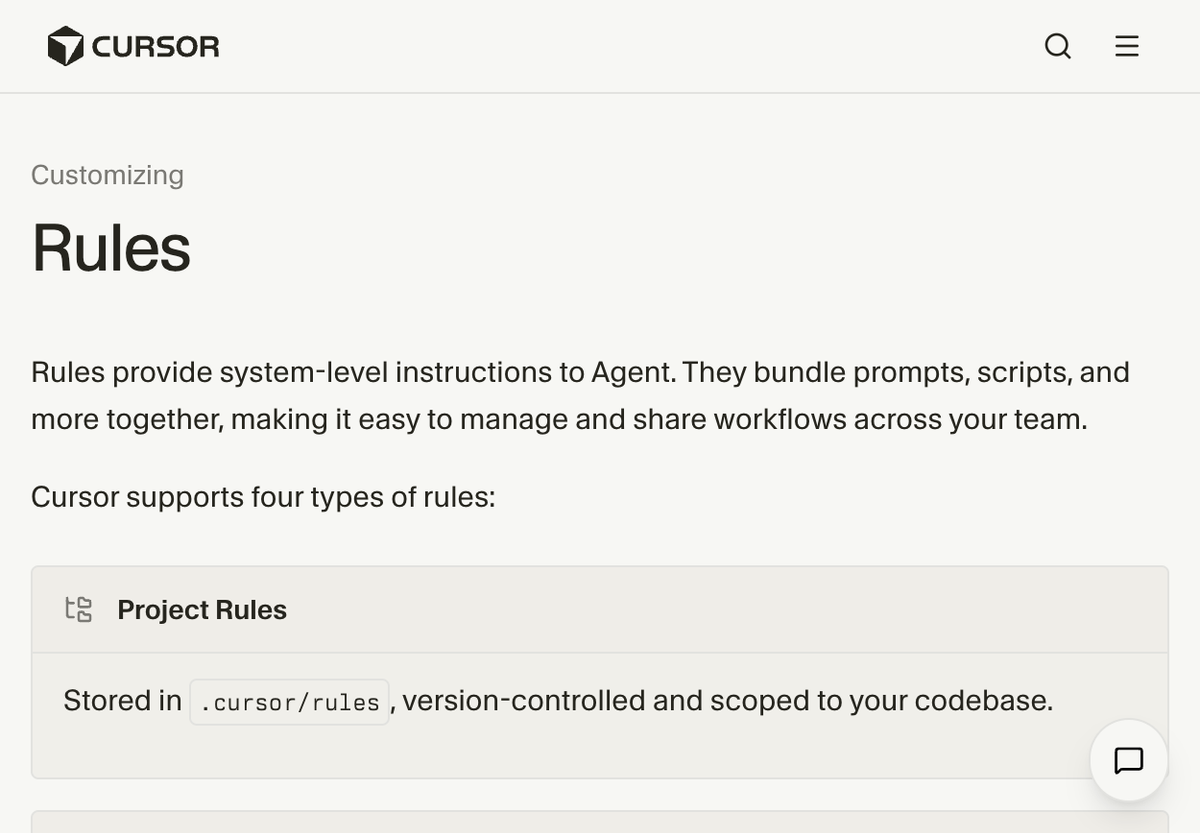
Cursor’s docs describe Rules as system-level instructions to the Agent—bundles of prompts, scripts, and related material you can share across a team.
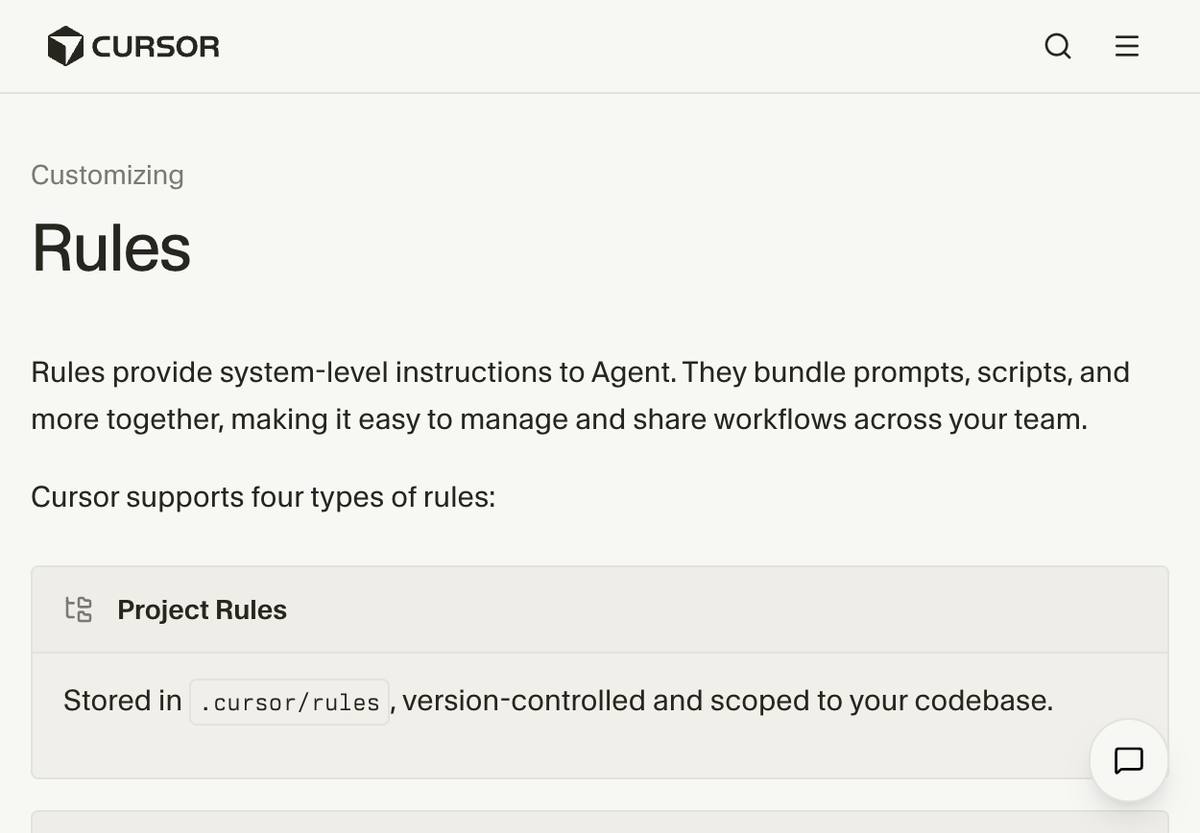
Caption: Official Cursor documentation defines Rules and shows Project Rules living under .cursor/rules.
Two real scopes you control
Project rules live in your repository under .cursor/rules/ (often as .mdc files). They are version-controlled with the code, so they apply to everyone who clones the repo. The documentation explicitly calls this out: project rules are scoped to your codebase.
User rules live in your Cursor account / global settings. They can follow you into every workspace unless you manage them per workspace in newer UI. That is convenient when you want the same writing standards everywhere—and confusing when a rule that belongs to “some other client project” suddenly appears while you are editing a marketing site.
The “All” tab is a combined feed
In Cursor → Settings → Rules, the All tab is a merged list: user rules, this project’s rules, and anything else Cursor is surfacing for this workspace. So you might see a web automation rule from .cursor/rules/ and a long SEO persona block that is not anywhere in the repo. That usually means the SEO block is user-scoped (global) or imported from another configuration source—not that Cursor is “ignoring” your project boundaries. [unverified] Exact tab labels can change between Cursor versions; use the UI as the source of truth.
If a rule feels “wrong” for this repo
Use the scope tabs deliberately:
- Open User: if the mystery rule appears there, it is global. Edit it, narrow it, or remove it.
- Open your project: you should only see what belongs to this workspace (for example, files under
.cursor/rules/).
If you want a rule only for one client or one codebase, prefer project rules in that repo. Remove or narrow the user rule, then add the same content as .cursor/rules/something.mdc there—with the right front matter (alwaysApply, globs, and so on) for when it should attach.
Some setups also have a setting along the lines of including third-party plugins, skills, and other configs. If turning that off makes a stray rule disappear from All, you have a strong hint the rule was imported, not authored in the project. [unverified] Wording varies by version; treat it as a debugging toggle, not a contract.
Internal link strategy for content teams
If you publish in Cursor-assisted workflows, keep project rules aligned with your AI website migration standards: canonical tags, heading rules, and disclosure language belong in-repo so every contributor gets the same guardrails.
Agents: what they are, Plan Mode, and Cloud Agents
The in-editor Agent
Cursor’s documentation describes the Agent as the assistant that can complete complex coding tasks on its own, run terminal commands, and edit code—opened from the side pane (shortcut shown in docs as Cmd+I on Mac).
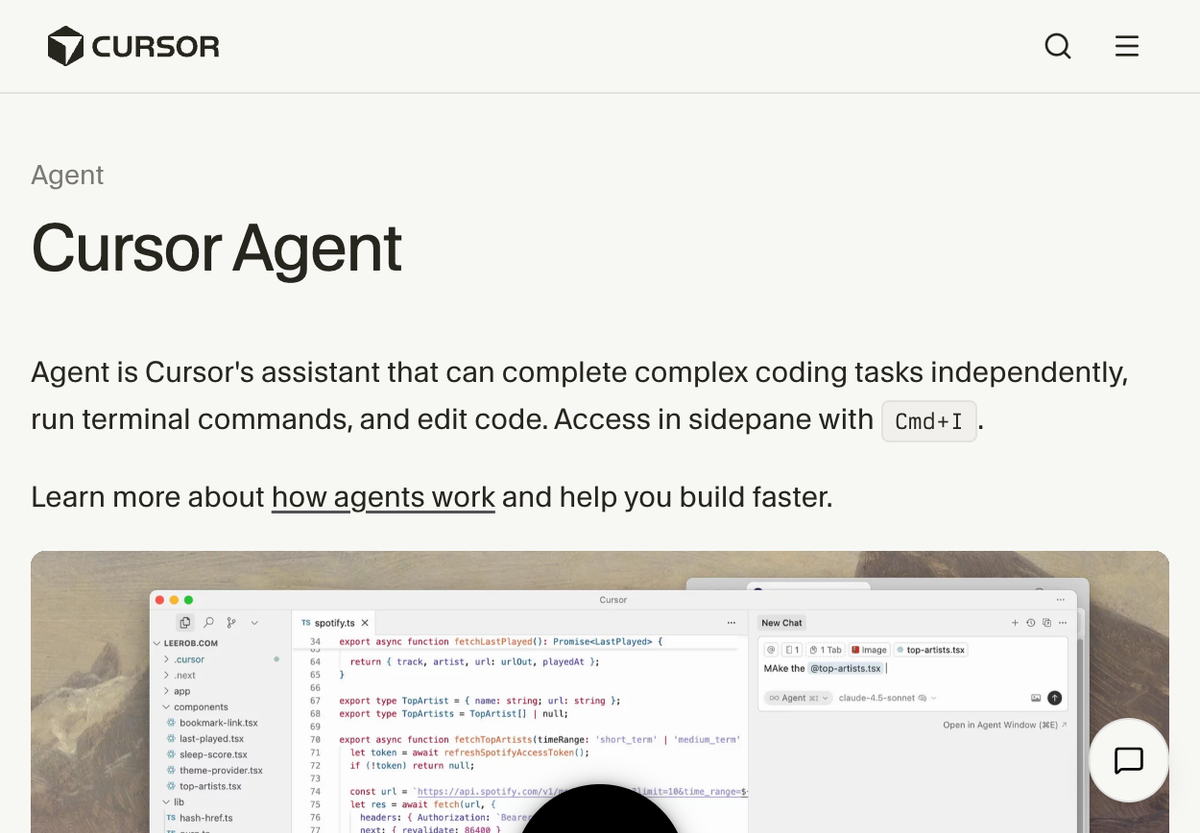
Caption: Cursor’s Agent overview shows the side-pane agent workflow and the .cursor folder in the project tree.
That last detail is easy to overlook: the .cursor directory in your file tree is where much of this configuration lives. Your rules and many tooling hooks are part of the project, not “hidden magic” in the cloud—unless you are using cloud-specific features below.
Plan Mode (agent behavior, not a different product)
Plan Mode is still the Agent, with a different rhythm: it creates a reviewable implementation plan before it starts rewriting half the repo. The docs describe research, clarifying questions, and a plan you can edit before build-out. You can toggle into it with Shift+Tab from the chat input in supported builds.
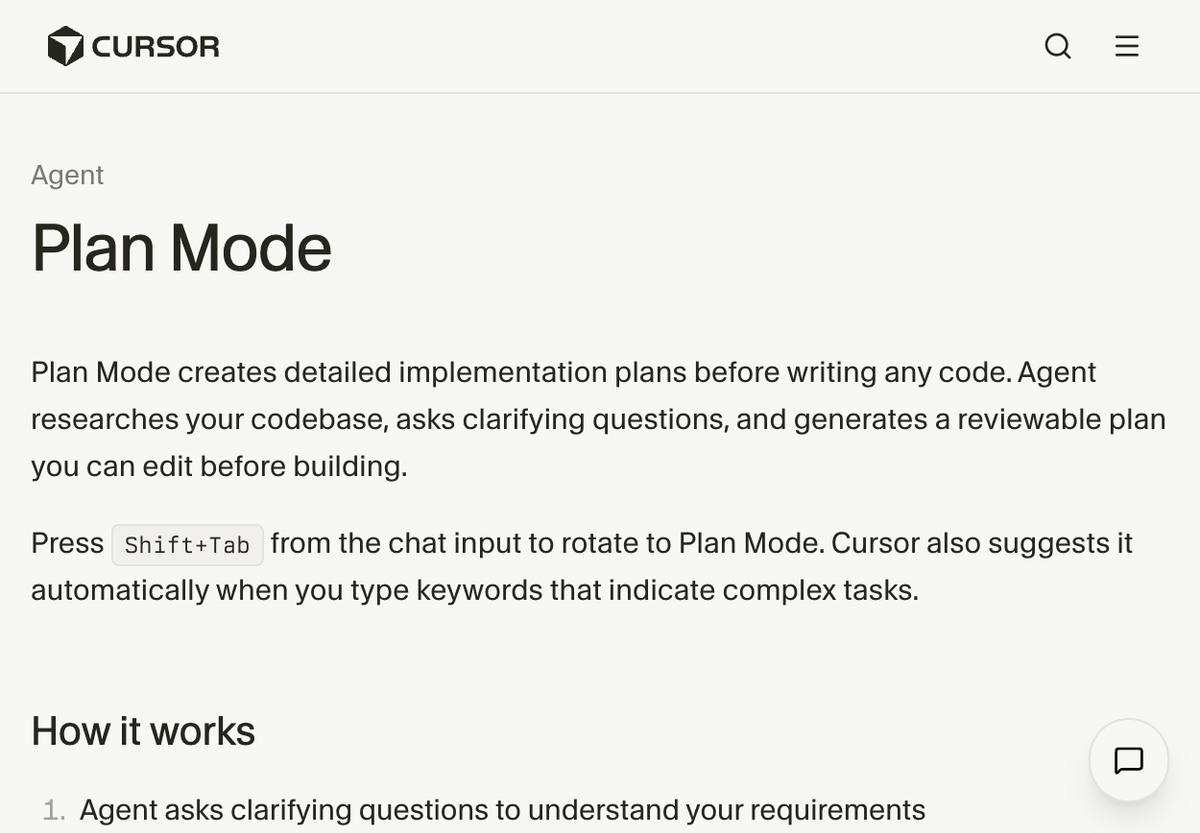
Caption: Plan Mode documentation highlights clarify-then-build behavior.
Use Plan Mode when the task touches many files, migrations, or ambiguous requirements—exactly the sort of work that shows up when you modernize a large WordPress site or restructure templates for programmatic pages.
Cloud Agents
Cursor also documents Cloud Agents as a separate surface from the purely local side-pane loop. The product positioning is about running agent workflows in the cloud environment (useful for asynchronous work, CI-like tasks, or offloading long runs). The screenshot below is from Cursor’s Cloud Agents documentation (April 2026).
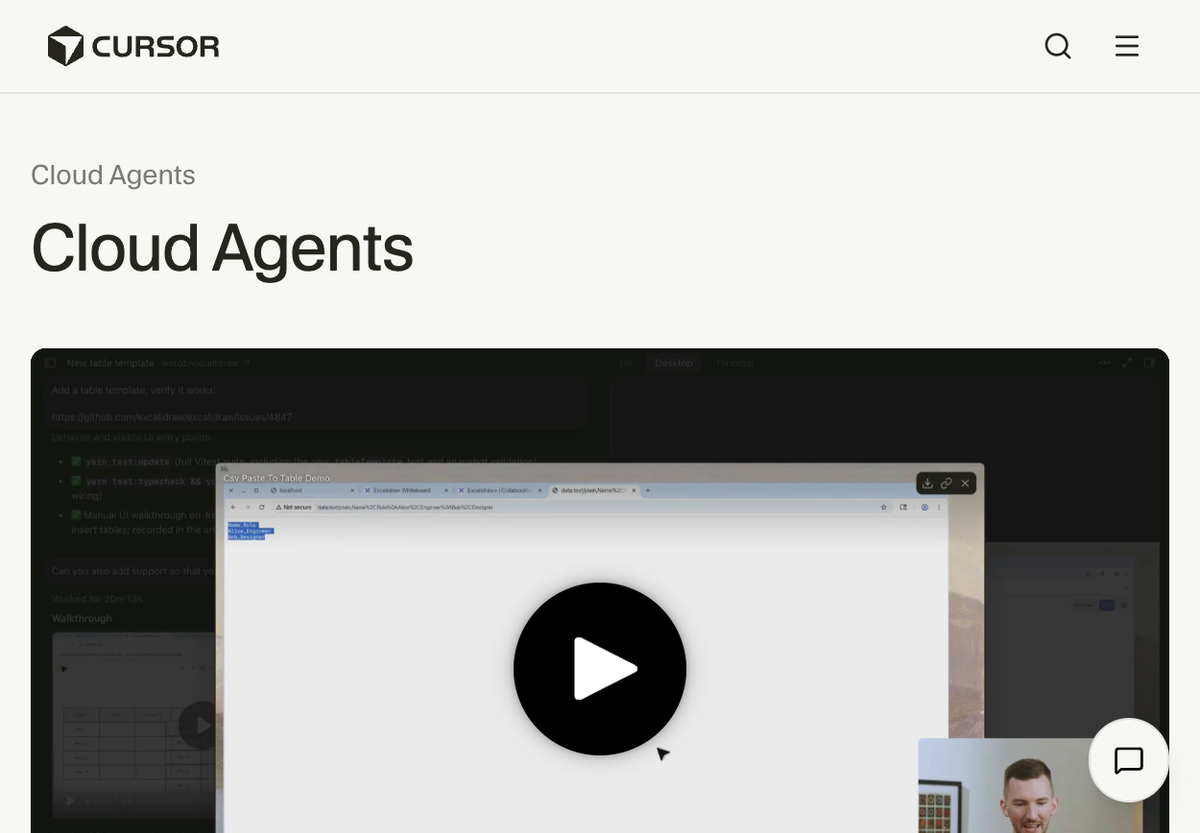
Caption: Cloud Agents documentation page (April 2026).
You do not need to master Cloud Agents on day one. The important distinction is where the work runs and what context it receives, not a completely different AI “species.”
Agents vs subagents (what you are actually seeing)
Cursor does not always use the word subagent in the docs you skim first, but you may still see parallel or delegated runs in the UI: a main agent session plus helper runs that search the repo, execute shell steps, or explore in isolation.
Practical way to think about it:
- Main Agent — The conversation you are steering; it owns the overall goal.
- Subagent / delegated run — A shorter, scoped burst of work spun up to answer a sub-question or run a tool-heavy path, then report back.
Why this matters: when something looks inconsistent, check whether the main thread had full context (open files, rules, skills) versus a narrow sub-run that only saw part of the tree. If instructions “did not stick,” the failure mode is often context scope, not malice.
Skills vs agents vs rules
Skills (portable playbooks)
Cursor documents Agent Skills as an open standard for extending agents. A skill is a portable, version-controlled package that teaches an agent how to perform domain-specific tasks, using scripts, templates, and references the agent can act on with tools.
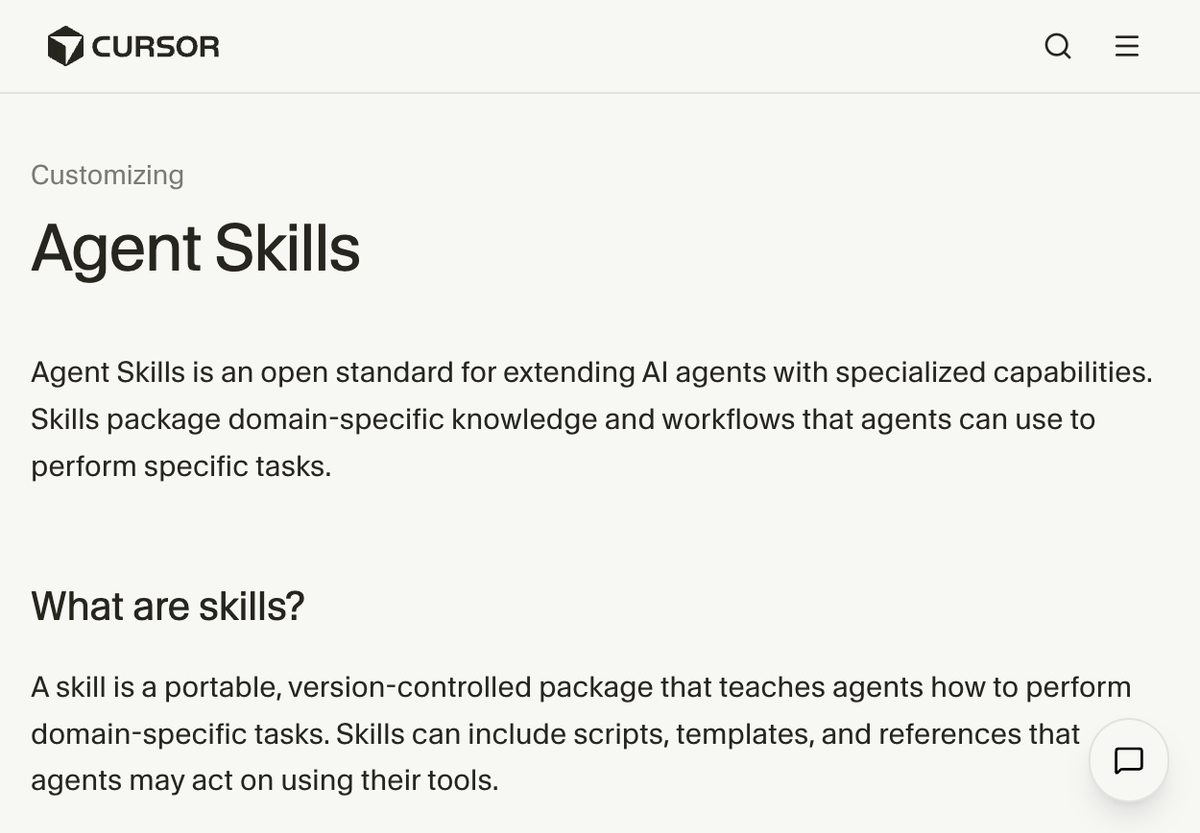
Caption: Official copy defines skills as packages that teach agents domain workflows.
Skills are not a replacement for the Agent. They are curriculum: when your task matches a skill’s description, the Agent can follow that playbook. They are also not the same as rules:
- Rules skew toward always / when matched by globs behavior settings.
- Skills skew toward procedures for specific kinds of tasks (browser QA, content bundles, profile generation, and so on).
Rules vs skills in one sentence
Rules tell the model who to be and what to enforce by default. Skills tell the model how to execute a repeatable workflow when the task fits.
Concrete samples you can copy
The following samples mirror real .cursor/rules and skill files from a production repo so you can see actual front matter and tone. Adapt names and paths for your own org.
Sample A — Project rule file (.mdc) with always-on scope
Project rules are Markdown (often .mdc) with YAML front matter. Here is a trimmed excerpt from a rule that applies broadly in a typical setup:
---
description: "Web automation agent (excerpt)"
alwaysApply: true
---

# Web Browser Agent

You are an expert Web Automation Agent specialized in browser control...
The key idea: alwaysApply: true means “attach this unless Cursor’s rule engine decides otherwise based on product rules.” Pair that with clear boundaries (when to take screenshots, when to stop for login) so the Agent does not improvise compliance.
Sample B — Skill file (SKILL.md) with a name and description
Skills expose themselves through front matter that includes a name and a description field describing when the skill should be used. For example, a skill might declare name: browser-automation-qa and a description that mentions screenshots, video, and .env credentials—signals that help the Agent pick it up for QA-style web tasks.
Your team’s skill bodies usually include:
- When this applies — Triggers in plain language.
- Steps — Ordered checklist the Agent should follow.
- Outputs — Where artifacts go (folders, filenames, reports).
That structure is what makes a skill feel like a runbook, not one-off prompt spam in every thread.
Here is a short excerpt from a real skill body (trimmed) showing how procedures are spelled out:
## When this applies

Use this skill for any task that drives a browser, validates a web app, scrapes pages,
or must leave auditable proof (screens, video, structured reports).

## Task plan (always)

1. **Setup / navigate** — Target URL, environment, any `.env` vars needed (without printing values).
2. **Interact** — Actions in order; one deliberate step, then verify structure changed if needed.
3. **Verify + capture** — Visual proof (screenshots/video); for tests, add console/network signals when available.
4. **Summarize + report** — Outcomes, paths to artifacts, issues, and next steps.
Notice the difference from a rule: the skill is not trying to redefine the Agent’s entire personality; it is trying to make one class of tasks land in the same folder structure every time. That is how you build audit trails for SEO and content operations without babysitting every run.
Quick comparison table
| Piece | What it is | Typical scope | Good for |
|---|---|---|---|
| User rules | Account-wide instructions | All workspaces (unless narrowed) | Personal writing habits, accessibility preferences |
| Project rules | Files in .cursor/rules | One repo / one product | Team standards, security, brand and SEO guardrails |
| Agent | The executor in the editor | The current task thread | Editing code, running commands, using tools |
| Skills | Versioned playbooks | On-demand when the task matches | Repeatable workflows: QA captures, migrations, content bundles |
When instructions conflict, what wins?
There is no public, line-by-line “precedence spec” you can rely on for every edge case. A practical priority stack that matches most users’ experience:
- Safety / system constraints — Things the product refuses to do, tool allowlists, and enterprise policy if configured.
- User rules + project rules — Together they form the baseline persona and non-negotiables for the workspace. If both say something, assume the stricter or more specific instruction should win—but in practice, contradictions are a bug in your configuration, not something to gamble on.
- Explicit chat instructions — What you say right now in the thread, especially if you repeat it near the end of a long conversation.
- Skills — Applied when the task matches; they refine how work is done more than whether to be polite.
Bottom line: If two layers disagree, do not hope the model arbitrates. Remove the conflict: delete duplicate guidance, move special-case instructions into the smallest scope that fits (project rule with globs, or a skill), and test with a fresh thread.
Workflow that keeps teams sane
- Put long-lived standards in project rules — Editorial voice, SEO guardrails, disclosure text, and “never do X in this repo” belong with the code for WordPress alternatives that actually scale.
- Put repeatable procedures in skills — Content QA, migration checklists, screenshot naming, and release verification are great skill candidates.
- Use Plan Mode for multi-file refactors — Especially when templates, routes, and schema all move together.
- Audit the Rules “All” tab when switching clients — If you feel “possessed” by the wrong persona, you almost always have a user rule or import to blame—not the project.
- Keep a short “debugging note” in the repo — One markdown file listing which rules should exist and why; onboarding is instant.
FAQ
“If I paste a huge SEO checklist into User rules, why does it show up while I am editing a random repo?”
Because user rules are designed to travel with you. That is the feature. If the checklist is not universal, move it to project rules for the one codebase that needs it, or split it: keep a short global rule (“always cite sources”) and put the long SEO matrix in the marketing site repo only.
“What belongs in Cursor agent YAML frontmatter?”
Use frontmatter for the agent or skill name, description, trigger language, and scope fields that help the tool decide when the instruction applies. Keep the body focused on task steps, outputs, and examples.
“Are Cursor skills smaller agents?”
No. Skills are packages of instructions and assets the Agent can use. There is still one primary Agent experience in the editor; skills change how it executes certain jobs, not who owns the conversation.
“Do rules slow everything down?”
Large rules add tokens to context. The product tries to be smart about what it includes, but bloated rules still cost money and attention. Prefer tight project rules plus skills for rare workflows over a single megaprompt that loads on every task.
“What should I do first if the Agent feels ‘out of character’?”
Open Settings → Rules, check User versus Project, then search the repo for .cursor/rules. If the behavior still does not match any file you recognize, toggle third-party import (if present) and retry. [unverified]
“Does Plan Mode replace normal Agent mode?”
No. It is a mode for when you want questions and a plan before edits. For tiny one-file tweaks, normal mode is often faster. For migrations and refactors, Plan Mode saves rollback time.
If your team is using Cursor to publish SEO content, pair these rules with an internal linking architecture that makes important pages easy to crawl. When a post still will not surface, use the Google Search Console not-indexed guide to separate crawl problems from quality or duplication issues.
When to use AiPress: If your Cursor rules and skills exist to keep a marketing site's SEO guardrails consistent, the fastest way to stop fighting WordPress plugin drift is to not have plugins at all. Programmatic SEO with AI ships pages with the same schema, heading, and link rules every time — the discipline your rules file is trying to enforce, built into the platform instead of policed by hand.
Closing
Cursor’s power is that rules, the Agent, and skills can stack into a serious engineering and publishing system. The mud comes from scope: global vs project, default vs on-demand, and main agent vs delegated runs. Clean those boundaries up once, and the tool stops fighting your AI website strategy.
Ready to see a faster, SEO-sane static site without wrestling plugins? Get a free preview from Aipress.io.
More field notes: browse the blog for migration and performance playbooks.
Sources and proof
- On-screen quotations and UI claims about Rules, Skills, Agent, Plan Mode, and Cloud Agents are grounded in the Cursor documentation screenshots included in this article (captured April 8, 2026).
- Behavior of the Settings → Rules tabs and third-party import toggles is labeled [unverified] where it depends on your exact Cursor version; confirm in-app.