
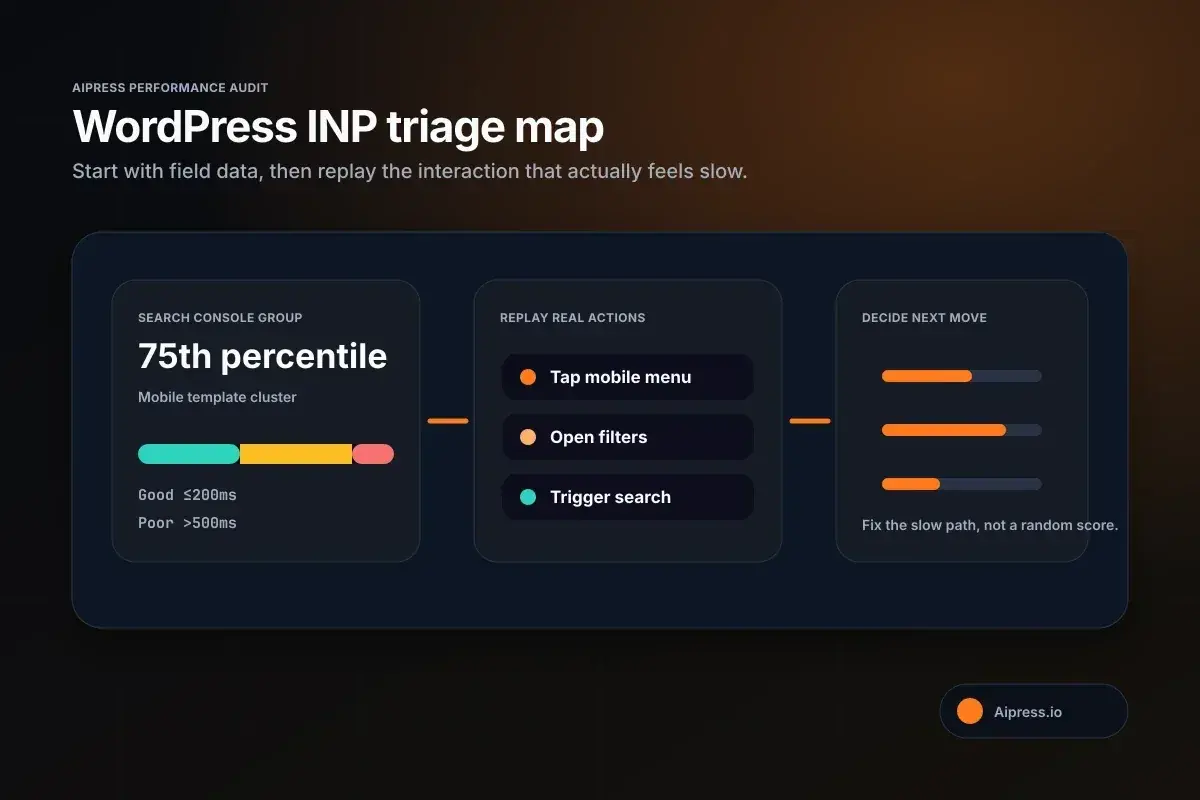
If your WordPress site already "loads fast" but still feels sticky when someone opens the menu, taps a filter, or clicks into search, you are not dealing with a simple hosting problem anymore. That lag usually lives in Interaction to Next Paint (INP), the Core Web Vitals metric Google now uses to judge responsiveness in real user visits.
That difference matters because plenty of WordPress teams still chase the wrong fix. They improve caching, compress images, and celebrate a prettier Lighthouse score, then wonder why Search Console still shows a poor responsiveness issue. The page looks loaded. The site still feels slow. That is the exact gap this audit is meant to close.
This guide gives you five practical checks to run before you pay for a rebuild, a theme replacement, or a bigger hosting plan. Some WordPress INP problems are fixable with better script discipline. Others are signals that your site architecture is carrying more JavaScript and interaction debt than another round of plugin tweaking will realistically solve.
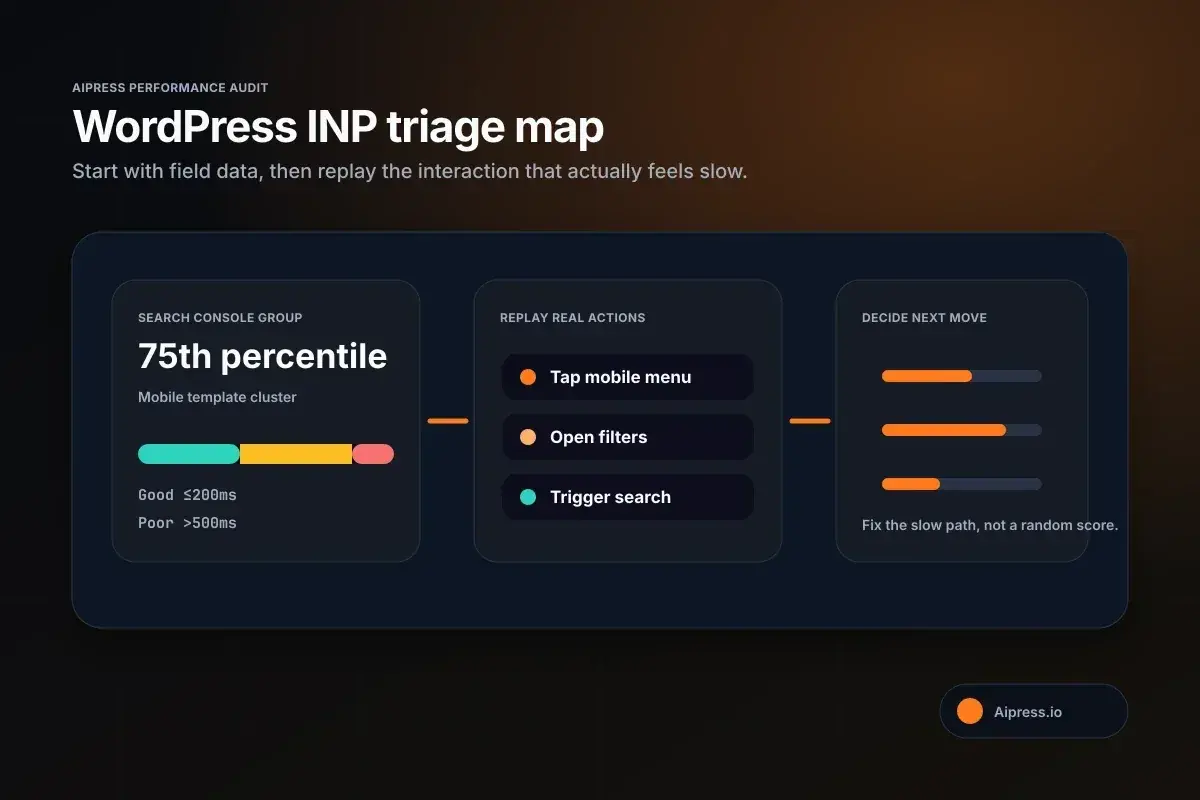
A good WordPress INP audit starts with field data, then narrows the problem to the interaction users actually feel.
What INP measures now
INP is the time between a real user interaction and the next visible paint that confirms the page responded. According to web.dev's INP documentation, it measures click, tap, and keyboard interactions across the lifespan of a visit rather than just the first one. Google Search Console's Core Web Vitals help page says the current thresholds are:
- Good: 200 ms or less
- Needs improvement: over 200 ms and up to 500 ms
- Poor: over 500 ms
That is a meaningful shift from the older FID conversation. FID only looked at the first interaction and only measured input delay. INP is broader. It includes the slow interactions that happen after the page looks ready, which is why WordPress sites can feel "fine on load" and still fail when someone actually tries to use them.
AiPress's own Core Web Vitals explainer now notes that Google replaced FID with INP, but many site owners are still operating with an FID-era mental model. The practical takeaway is simple: you are no longer auditing only initial load behavior. You are auditing the slowest meaningful interaction during a real visit.
Why WordPress sites miss the point on INP
WordPress teams often diagnose performance in the order that the dashboard and plugin ecosystem encourage:
- Install caching
- Minify files
- Compress images
- Buy better hosting
Those can help LCP and sometimes overall stability. They do not automatically improve responsiveness after load.
That is why WordPress-specific INP complaints sound so repetitive:
- "The menu lags on mobile."
- "The filter opens slowly."
- "The popup hesitates before it appears."
- "Search Console says poor responsiveness, but my PageSpeed score improved."
The fallback Stage 2c research for this run showed the same pattern across public WordPress optimization discussions: owners keep treating INP like a page-load metric, while experienced guidance keeps pointing back to main-thread blocking, third-party scripts, page builders, and post-load UI behavior.
Check 1: confirm whether the problem is field data, not just a lab score
Before you touch plugins, confirm where the problem actually exists.
Google Search Console's Core Web Vitals report documentation makes two points that matter here:
- The report is based on real user data, not a synthetic test.
- URL groups are judged by the worst-performing metric in the group at the 75th percentile.
That means one common WordPress failure mode is this:
- Lighthouse or PageSpeed Insights looks decent on a single URL.
- Search Console still shows a poor or needs-improvement INP issue on a template group.
When that happens, do not assume Search Console is wrong. It usually means one of three things:
- Your lab run missed the slow interaction users actually trigger.
- The issue appears on mobile or lower-powered devices more than on your desktop.
- The problem belongs to the template family, not only the single page you tested.
What to do
- Open Search Console and identify whether the INP issue is tied to a URL group, not an isolated page.
- Test a representative page in PageSpeed Insights, but treat it as diagnostic context, not the final verdict.
- Reproduce the interactions users actually perform: open the mobile nav, trigger filters, tap accordions, submit search, or fire any sticky CTA widget.
If your WordPress performance review does not include those interaction paths, you are not auditing INP. You are only auditing load.
Check 2: look for third-party scripts on interaction-heavy UI
This is where a lot of WordPress INP audits should start in practice.
The current Aipress Core Web Vitals article already identifies third-party scripts competing for resources as a common cause of poor INP. Public WordPress optimization guides in the fallback research repeat the same thing: chat widgets, analytics tools, popups, call tracking, consent layers, and marketing tags frequently block the main thread right when the user tries to interact.
The trap is that these scripts often do not make the first paint look catastrophic. They slow the site after the page appears useful.
What to check
Audit the elements that fire after load:
- mobile navigation
- sticky call or book-now bars
- search overlays
- appointment widgets
- consent banners
- live chat
- popups and slide-ins
- filter and sorting controls
If a slow interaction depends on third-party JavaScript, you may see a short page-load win and still get a bad INP outcome because the browser is busy when the tap happens.
What to do
- Delay or remove scripts that are not needed before first interaction.
- Be careful with blanket "delay all JS" settings; they can create a different problem where the first tap waits for delayed scripts to wake up.
- Test the actual click experience after every script change, especially on mobile nav and lead-gen UI.
This is one place where WordPress owners overestimate caching and underestimate script governance.
Check 3: inspect your page builder and theme interaction debt
If your site runs on Elementor, Divi, or another builder-heavy setup, INP problems are often not isolated bugs. They are symptoms of the output model itself.
AiPress's page-builder SEO article calls out:
- bloated HTML and excessive DOM nodes
- heavy JavaScript
- poor Core Web Vitals
- unoptimized assets
It also gives builder-specific examples like large CSS payloads, globally loaded scripts, and nested structures that cost more to render and update.
That matters for INP because responsiveness is not only about downloading code. It is about how much work the browser has to do when a user triggers a UI change.
What to check
Focus on interaction-heavy templates:
- homepage hero with animated sections
- service pages with accordions, sliders, and popups
- location pages with maps, sticky forms, and FAQ toggles
- pages using builders plus multiple conversion widgets
If a user clicks a menu, opens an accordion, or taps a modal and the browser has to recalculate styles across a large DOM tree, your INP budget disappears quickly.
What to do
- Remove decorative interactions that add JavaScript cost but little business value.
- Reduce globally loaded widgets.
- Replace builder-heavy modules on key templates when a lighter implementation is possible.
- Test whether the issue follows the template family, not just one page.
If every major marketing template has the same sluggish interaction pattern, you are usually looking at systemic interaction debt, not one bad plugin.
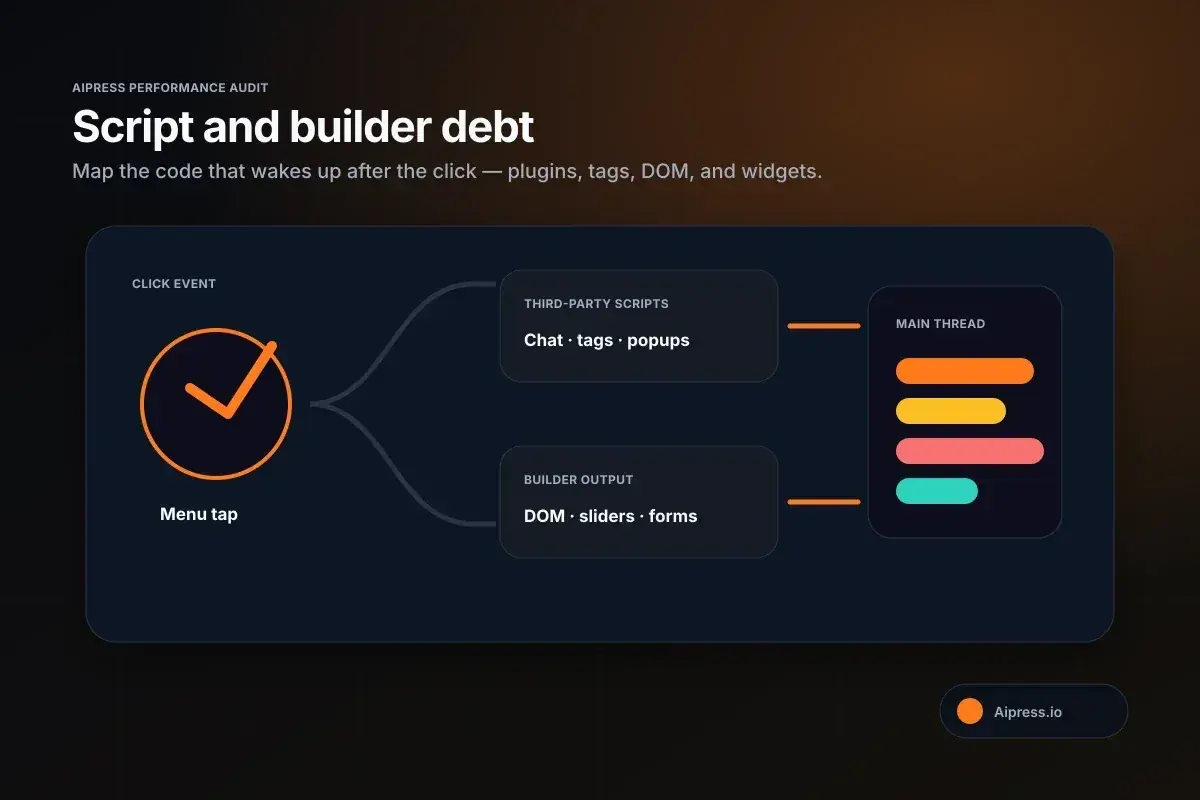
Builder-heavy WordPress pages often fail because third-party scripts, DOM weight, and conversion widgets wake up on the same click path.
Check 4: compare main-thread work to the interaction that feels slow
The strongest non-vendor guidance in this run came from web.dev's INP article and the Chrome for Developers video results surfaced in the fallback Stage 2c research. The pattern is consistent: slow INP usually comes from long tasks, delayed event handling, or slow presentation after the interaction fires.
That is why your audit should always tie the complaint to a specific interaction:
- tap menu
- open filter
- expand accordion
- trigger search
- close popup
Then ask: what code runs at that moment?
What to check
Using DevTools or PageSpeed diagnostics, look for:
- long JavaScript tasks
- excessive third-party script execution
- large style recalculations
- heavy DOM updates after a click
- a mismatch between what the user clicked and when the UI visibly reacts
The WordPress-specific version of this problem is common: the site looks optimized at rest, but the first meaningful tap wakes up a cluster of scripts that should never have been sitting on the critical path.
What to do
- Split up expensive interaction work where possible.
- Remove or defer code that does not need to run before the next paint.
- Reduce unnecessary rerendering and event listeners on interactive templates.
This is the point in the audit where you separate "the site is slow" from "this specific interaction is expensive."
Check 5: decide whether you have an optimization problem or an architecture problem
This is the question many teams avoid because it is more expensive than another plugin setting.
AiPress's Why WordPress Breaks at Scale page makes the broader case that WordPress accumulates cost through:
- database work per request
- plugin execution
- theme rendering overhead
- increasing fragility as the stack grows
Not every INP issue means you need to rebuild the site. But some combinations are strong signals that optimization is becoming maintenance theater:
- interaction lag appears across multiple template types
- page builders and third-party scripts are deeply intertwined
- every fix needs exceptions to avoid breaking UI
- the site only behaves acceptably after stacking more optimization plugins
- the business-critical pages still feel slow after obvious script cleanup
When optimization is still enough
You can usually stay in optimization mode when:
- the problem is concentrated in one or two widgets
- delayed JS or script removal clearly improves the interaction
- the rest of the template family behaves well
- you can identify a specific plugin or feature causing the lag
When architecture is the more honest answer
You should at least price an architectural change when:
- the sluggishness is systemic across key templates
- responsiveness depends on a builder-heavy frontend plus many third-party scripts
- your best fixes keep trading one breakage for another
- the business already wants better technical SEO, easier maintenance, and a cleaner publish stack
That does not mean every poor INP score demands a static rebuild tomorrow. It does mean some WordPress sites are signaling that the real cost is now in the system itself, not in one isolated setting.
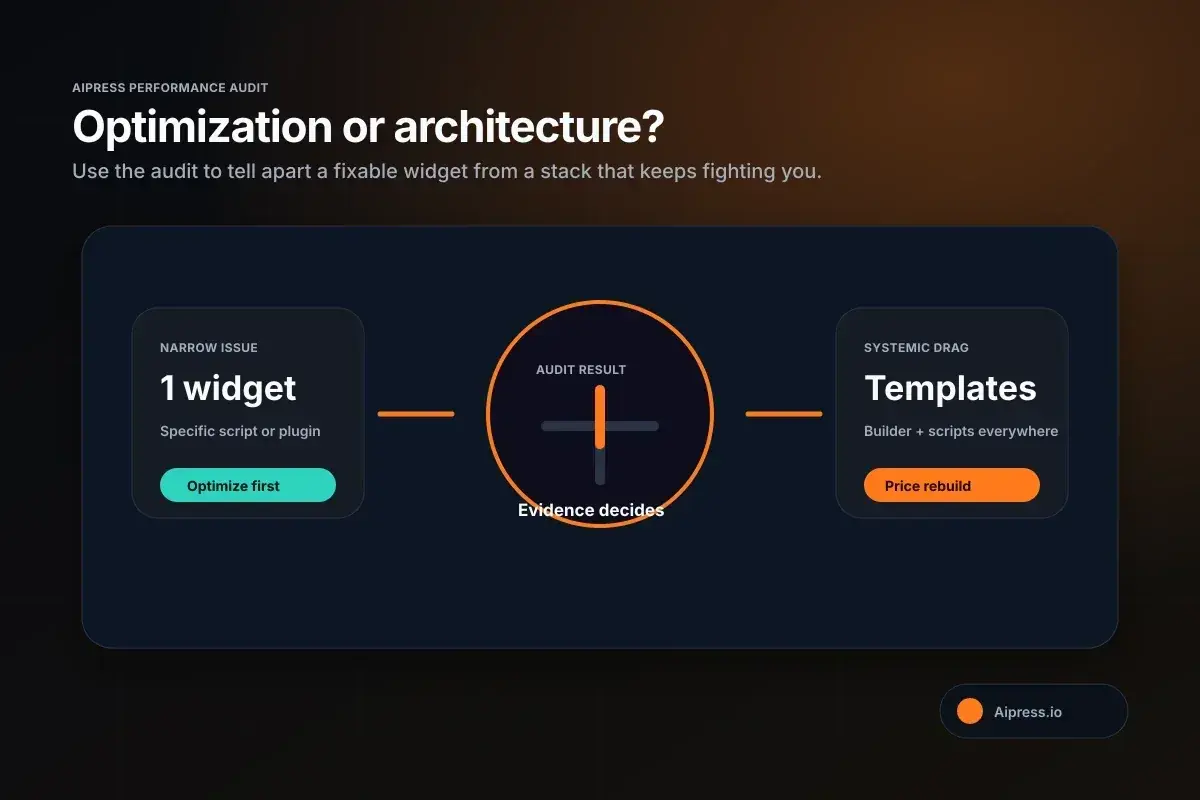
The audit should separate a fixable widget from systemic template debt before anyone commits to a rebuild.
A practical audit order for WordPress owners
If you want a cleaner sequence, use this order:
-
Confirm the issue in Search Console
Make sure you are dealing with real-user INP, not only a lab warning. -
Identify the slow interaction
Mobile menu, accordion, search, filter, popup, CTA widget. -
Audit third-party code around that interaction
Analytics, chat, tracking, consent, embeds, booking tools. -
Check builder and theme overhead on the template
Large DOMs, globally loaded widgets, animation-heavy modules. -
Decide whether the issue is local or systemic
One script versus the whole architecture.
That order keeps you from jumping straight from "poor INP" to "buy better hosting" or "rebuild the whole site" without evidence.
Where AiPress fits into this decision
AiPress's first-party positioning is consistent across the pages captured for this run:
- AI Websites argues that faster, cleaner delivery is a structural advantage.
- Why WordPress Breaks at Scale frames WordPress overhead as an architectural constraint, not just an optimization problem.
- Get Started offers a free homepage preview workflow rather than an immediate hard sell.
That makes this the honest reader takeaway:
- If your INP problem is narrow, fix the interaction first.
- If your INP problem is broad, repeated, and tied to heavy template architecture, a preview of a lighter frontend becomes a rational next step rather than a panic move.
That is a much stronger pitch than telling every WordPress owner to migrate on day one.
FAQ
Can a WordPress site have good load speed and still fail INP?
Yes. That is one of the most common sources of confusion. A site can improve image compression and caching, look faster on initial load, and still feel laggy once the user taps a menu, filter, popup, or search control. INP measures responsiveness to those interactions, not just the first impression.
Does poor INP always mean bad hosting?
No. Hosting can affect site performance overall, but INP is often tied to JavaScript execution, third-party scripts, large DOM updates, and interaction-heavy templates. If the problem appears after load when users click something, hosting may not be the first thing to blame.
What is the most relatable WordPress example of bad INP?
Mobile navigation is a good one. Public WordPress guidance and Chrome-team education both use interaction examples like menus, accordions, and search overlays because they expose the difference between a page that looks ready and a page that actually responds quickly.
When should I stop tweaking plugins and consider a bigger change?
If multiple key templates feel slow, fixes require constant exclusions, builder and third-party code are tightly tangled, and your best improvements still leave business-critical interactions laggy, you may be dealing with architecture rather than configuration.
Bottom line
The smartest WordPress INP audit starts with one uncomfortable question: what exactly feels slow after the page loads?
Once you answer that, most of the next steps become clearer:
- confirm the issue in field data
- tie it to a real interaction
- remove script bloat where you can
- measure the template, not just one page
- decide whether you are fixing a widget or fighting the stack
That is the difference between a useful optimization pass and another month of random performance tweaks.
If you want to see what a lighter frontend might look like before making a bigger decision, AiPress offers a free homepage preview. Use that as a diagnostic input, not a substitute for the audit itself.